
ChatGPT and Codex
How to create Printify products from ChatGPT or Codex
To create products in your Printify shop from ChatGPT or Codex, connect an MCP server that works with your Printify account, such as Productify's. Each design you attach becomes one product on a saved template, and nothing is created, published or edited until you approve a preview. Printify's own ChatGPT app is for designing and ordering a personalized gift, not for creating products in your shop.
Updated
ChatGPT apps
Is there a ChatGPT plugin for Printify sellers?
Printify's own app in ChatGPT is for shoppers who want a personalized gift designed and ordered for them, as Printify's ChatGPT page and help center explain. For a seller, ChatGPT reaches outside tools through MCP servers. ChatGPT adds one as a developer-mode app on its Plugins page; Codex adds one to its MCP configuration.
Productify's MCP server:
https://www.useproductify.com/api/mcp- Transport: streamable HTTP
- Sign-in: your Productify account, through OAuth 2.1
Other Printify MCP servers run on your own computer with your Printify API key in a config file. This one is hosted, and you sign in with your Productify account.
Before you start
What do you need before connecting?
- A Productify account with a Printify shop connected. See create a Printify API key (personal access token).
- At least one saved template in that shop. Chat adds designs to a saved template; it does not set up a new product from Printify's catalog. See create and reuse Printify product templates.
- For ChatGPT: a Plus, Pro, Business, Enterprise or Education plan on the web, with developer mode on. That is OpenAI's eligibility list in its developer mode guide.
- For Codex: the Codex CLI, the Codex IDE extension or the ChatGPT desktop app.
- Designs as PNG or JPEG files at print resolution.
ChatGPT
How do I connect Productify to ChatGPT?
- In ChatGPT, open Settings, then Security and login, and turn on Developer mode.
- Open ChatGPT's Plugins page and select the plus button.
- Name the app Productify and enter
https://www.useproductify.com/api/mcpas the server URL. Choose OAuth for authentication. - Create the app. ChatGPT sends you to Productify to sign in.
- Productify's consent screen names the app and shows the email you are signed in with. Choose the permissions and select Allow.
- In a new chat, choose Developer mode from the plus menu and select Productify.
These menu names come from OpenAI's developer mode guide, checked October 3, 2026. If a menu has moved, that guide has the current path.
Codex
How do I connect Productify to Codex?
The Codex CLI, the Codex IDE extension and the ChatGPT desktop app share one MCP configuration, so Productify is added once. In a terminal:
codex mcp add productify --url https://www.useproductify.com/api/mcp
codex mcp login productify
The login command opens Productify's sign-in and consent screen. To add the server by hand instead, put this in ~/.codex/config.toml and run the same login command:
[mcp_servers.productify]
url = "https://www.useproductify.com/api/mcp"
In the IDE extension or the ChatGPT desktop app:
- Open MCP servers in settings and select Add server.
- Choose Streamable HTTP and enter the URL.
- Save the server and restart.
- Select Authenticate to sign in to Productify.
Codex can read design files on your computer. Point it at the files, and it uploads each one to Productify itself before adding it to the upload.
Commands and config keys from OpenAI's Codex MCP documentation, checked October 3, 2026.
Permissions
What can the app do with my shop?
You choose on Productify's consent screen. The second permission is the box labeled “Also create products in Printify, publish them to your store, and edit them.” It stays unticked unless you tick it.
| Permission | What the app can do |
|---|---|
| Always | See your shops, saved templates and products. Add designs to an upload, which also puts them in your Printify media library. Write listings for an upload in your shop's voice. See the progress of create, publish and edit runs. |
| Only if you tick it | Create products in Printify as drafts. Publish them to your store. Edit titles, descriptions, tags and prices. Save the shop's listing voice the first time. |
| Never from chat | Delete products. |
Every create, publish and edit made from chat is emailed to you, with a link to disconnect the app. ChatGPT also asks you to approve its write actions by default.
To add the second permission later, reconnect and tick the box. In Codex, disconnect it under Shops, Connected apps in Productify, then run codex mcp login productify again.
From chat to Printify
What happens when I ask it to make products?
- The app lists your shops and saved templates, and you choose a template. Chat works in the shop selected in Productify.
- You attach up to 20 PNG or JPEG designs. Each one becomes a proposed product, and each file goes to your Printify media library.
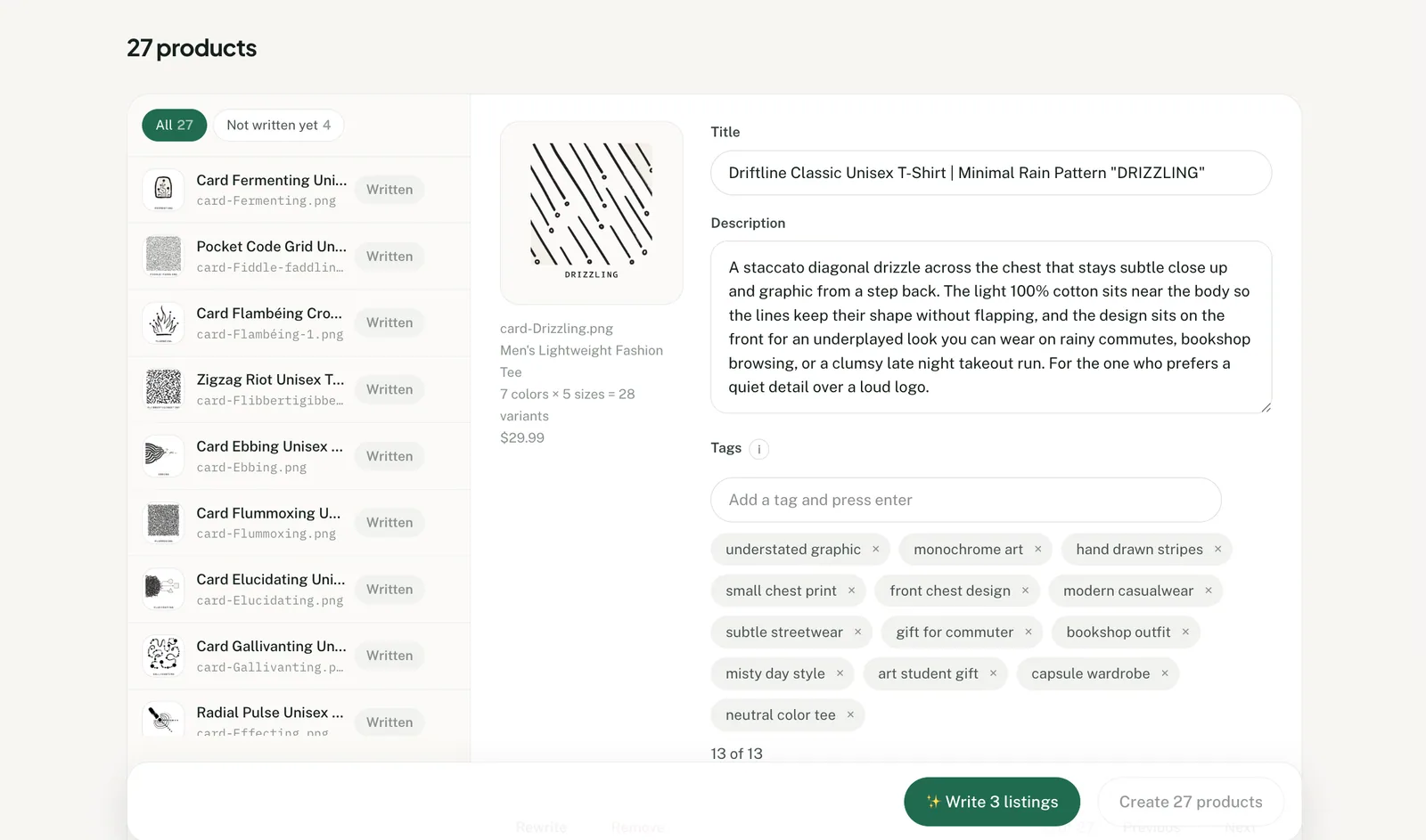
- Productify writes each title, description and set of tags in your shop's voice, following Etsy's tag rules: up to 13 tags, 20 characters each. A title you give is kept. If the shop has no voice yet, the app asks you how the listings should sound first.
- The upload waits on Productify's review screen, where each product stays editable.
- Ask the app to create the products. It previews which products, their prices and any print warnings. Nothing is created until you say yes.
- The products are created as drafts in your Printify shop. The run continues in the background, and the app reports its progress when you ask.
- To publish, the app previews which products go to your store and which are already live. Publishing a live product again replaces any edits made to it in the store. Publishing uses the sales channel connected to that Printify shop.
A product changed after its preview has to be previewed again before the app can act on it.
Print quality
Why does a design get a print warning?
Productify compares each design's pixel size with the print area on the template. A design that will print blurry is named in the upload and again in the preview, before anything is created. Images made with ChatGPT's image generator are often too small for a full-size print. Use the original file or a larger export.
Edits
How do I change listings or prices from chat?
Ask for the change, and the app previews each product's before and after. One change covers up to 10 products and can set the title, description, tags or price. It works on products in an upload and on products Productify created.
A price is one rule for the whole product:
- a retail price, the same for every size;
- a profit in dollars over each variant's Printify cost;
- a markup percentage over each variant's Printify cost.
A price at or below Printify's cost for any variant is refused. A live product's store listing shows the change after its next publish.
For agents and developers
Productify MCP server reference
- URL:
https://www.useproductify.com/api/mcp - Transport: streamable HTTP.
- Auth: OAuth 2.1 with PKCE (S256) for public clients. Dynamic client registration and client ID metadata documents are supported. Protected resource metadata:
https://www.useproductify.com/.well-known/oauth-protected-resource/api/mcp - Scopes:
productifyis always granted.productify.manageis granted only when the seller ticks it on the consent screen, whatever the client requests. - Shop: every tool acts on the shop selected in the seller's Productify account. No tool takes an account or a shop.
- Confirmation: each preview tool returns a
confirmToken. Call the action only after the seller says yes to what the preview showed, passing the preview's values andconfirmTokenunchanged. A product changed since the preview is refused until it is previewed again. - Runs: create, publish, and a price change on a product already in Printify start a run and return at once. Follow it with
get_job_status. Other edits are saved before the call returns. - Limits: 20 files per
stage_designsorget_upload_urlscall, 20 products per create or publish, 10 per edit. One upload per template per call; a create can take products from several uploads. - Listings are written by Productify, not by the chat model, unless the seller dictates them.
- Deleting products is not exposed.
| Tool | Scope | What it does |
|---|---|---|
list_shops_and_templates | productify | Lists the connected Printify shops, which one is selected, and that shop's saved templates. Call it first for a templateId. |
stage_designs | productify | Adds attached PNG or JPEG designs, up to 20 per call, to a new upload on a saved template: one product per design. Starts the listings. |
get_upload_urls | productify | For files on the seller's computer: one-time upload URLs from each file's name, size, type and SHA-256. PUT the bytes, then pass the uploadIds to stage_designs. |
write_listings | productify | Starts Productify's writer on an unfinished upload: title, description and tags in the shop's voice, following Etsy's tag rules. |
set_shop_voice | productify.manage | Saves how the shop's listings should sound, only when the shop has no voice yet. |
get_review | productify | Shows the upload's products: title, file, variant count, price range, whether the listing is written, and print warnings. |
find_products | productify | Finds products in the selected shop by words in the title, and by status. Returns the 20 most recently changed. |
get_job_status | productify | Reports the progress of a create, publish or edit run. |
preview_create, then create_products | productify.manage | Previews, then creates up to 20 products as drafts in Printify, from one upload or several. |
preview_publish, then publish_products | productify.manage | Previews, then publishes up to 20 products to the store connected to the Printify shop. |
preview_edit, then edit_products | productify.manage | Previews, then changes the title, description, tags or price of up to 10 products. |
The same page as markdown: https://www.useproductify.com/printify-chatgpt-mcp.md
Chat or web
When is the web app the better choice?
- More than 20 designs at once. An upload in the web app takes up to 50.
- A new product from Printify's catalog. Chat needs a saved template; see bulk create Printify products without a template.
- Editing more than 10 products at once, or changing artwork, placement or variants. See how to bulk edit Printify products.
- One gift for yourself. Printify's own ChatGPT app is built for that.
Questions
ChatGPT and Codex FAQ
Is Productify's ChatGPT app made by Printify?
No. Productify is independent and is not affiliated with or endorsed by Printify. It reaches your shop through the Printify personal access token you connected in Productify.
Which Printify shop does chat work in?
The shop selected in Productify. Chat cannot switch shops, so change the selection in Productify and the next request uses it. A run that already started stays with its own shop.
Can I put one design on several products, like a tee, a mug and a tote?
Yes. Chat adds the design once per saved template, which makes one upload each, and creates them all after one preview. An upload already waiting stays as it is. Sending the same designs to the same template again returns the upload they are already in.
Can I keep my own titles and descriptions?
Yes. Give the titles in chat and they are kept, while Productify writes the description and tags. To create products without a written listing, tell the app you want to keep your own text.
Does the run stop if I close the chat?
No. Create, publish and edit runs continue in the background. Ask for the status in a new chat, or follow the run in Productify.
How do I disconnect ChatGPT or Codex?
In Productify, open Shops, find Connected apps and select Disconnect. Signing out of Productify does not disconnect an app.
Start with a saved template.
Chat adds designs to a template saved in Productify. Once your Printify shop is connected, save one from a product you already sell.