
Need help choosing the product or print provider? Compare the catalog options before you begin.
From designs to products
Create your first products.
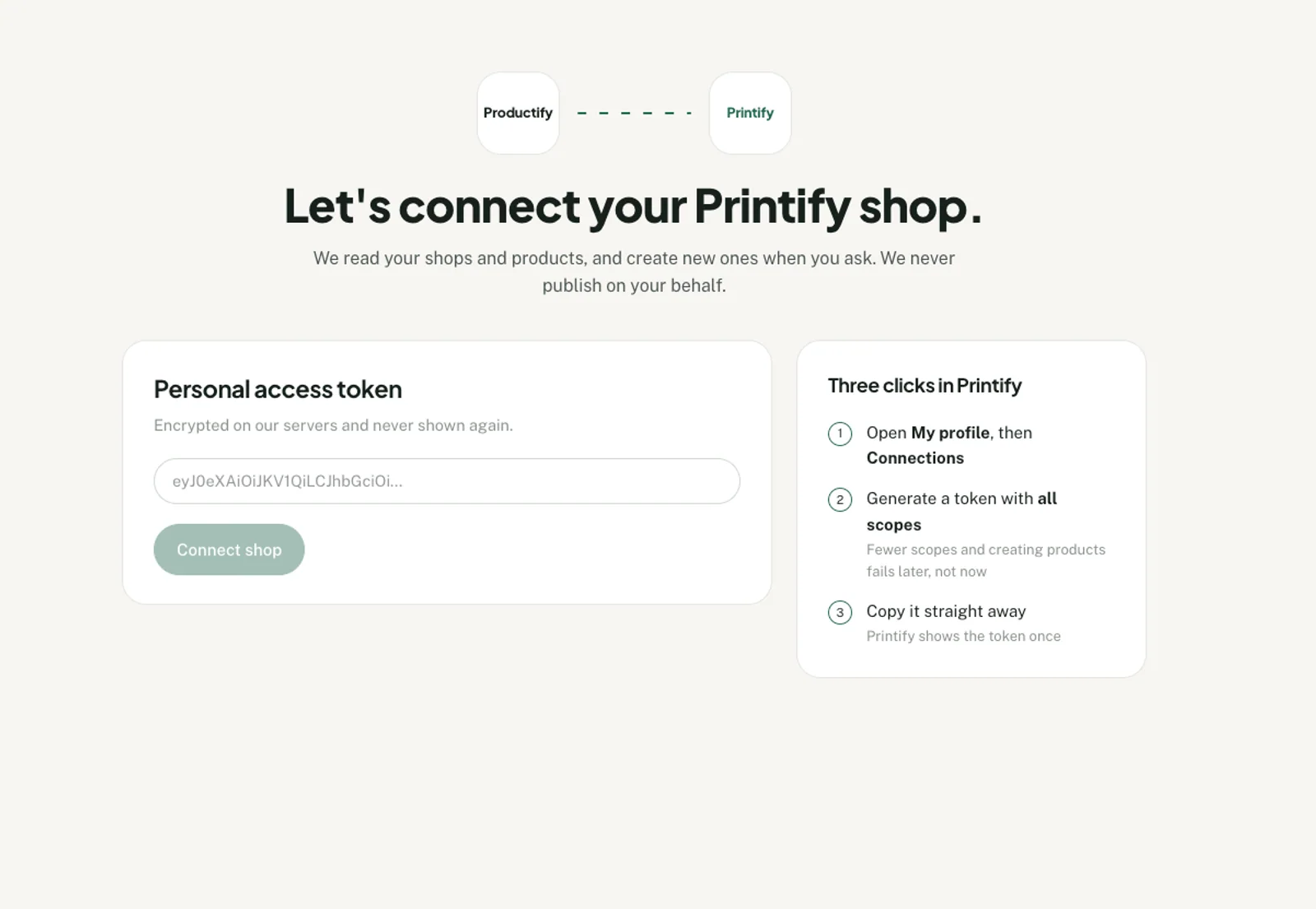
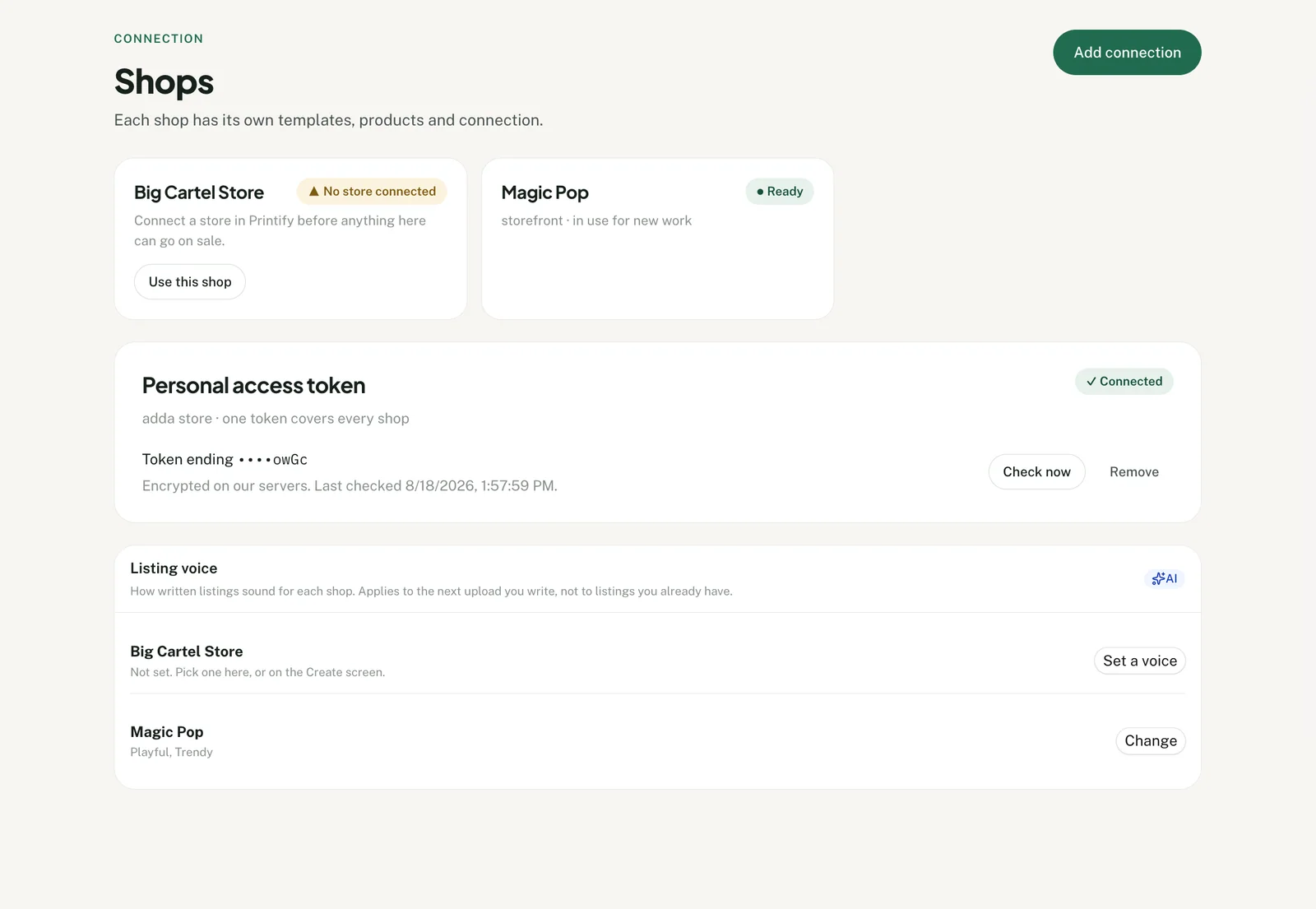
Connect your Printify shop
Connect Printify with a personal access token, then select the shop where Productify should create the new products.
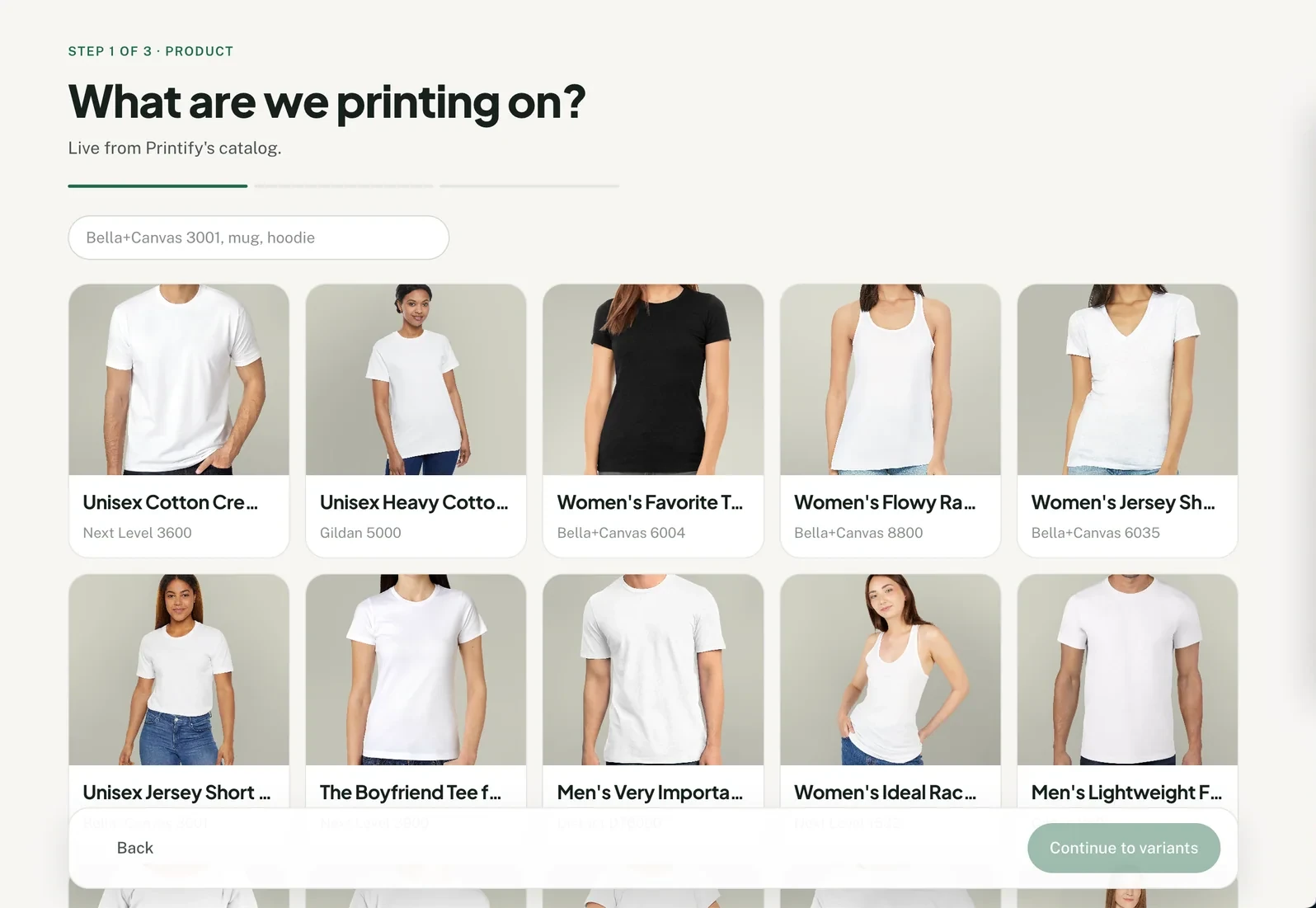
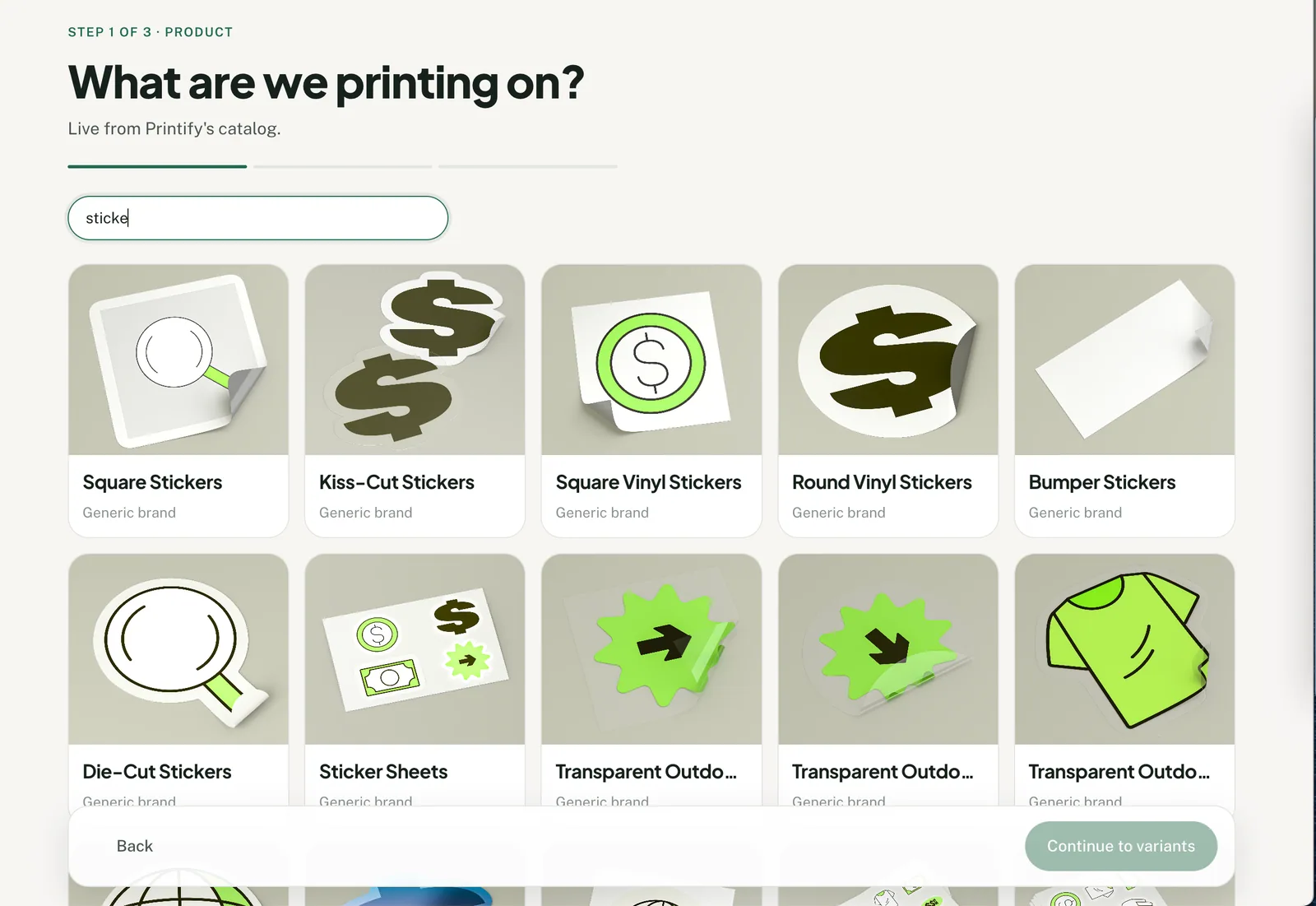
Search Printify's current product catalog
Open Create products in Productify. The product picker opens when you have no saved setup; otherwise choose Set up a new product. Search for the shirt, hoodie, mug or other product you want to sell.
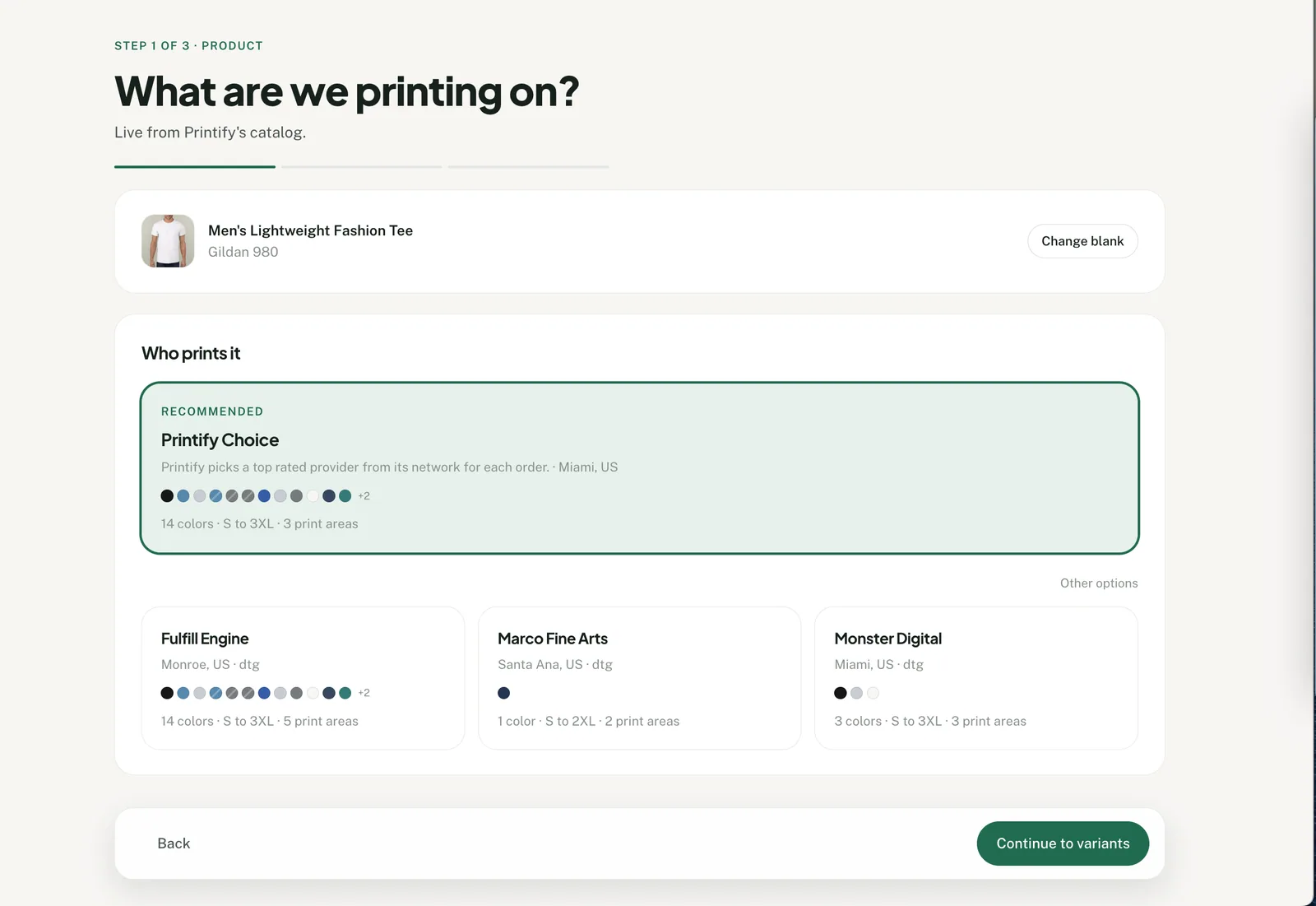
Choose the print provider
Select one of the providers Printify currently offers for the product. Productify loads that provider's available colors, sizes and print areas.
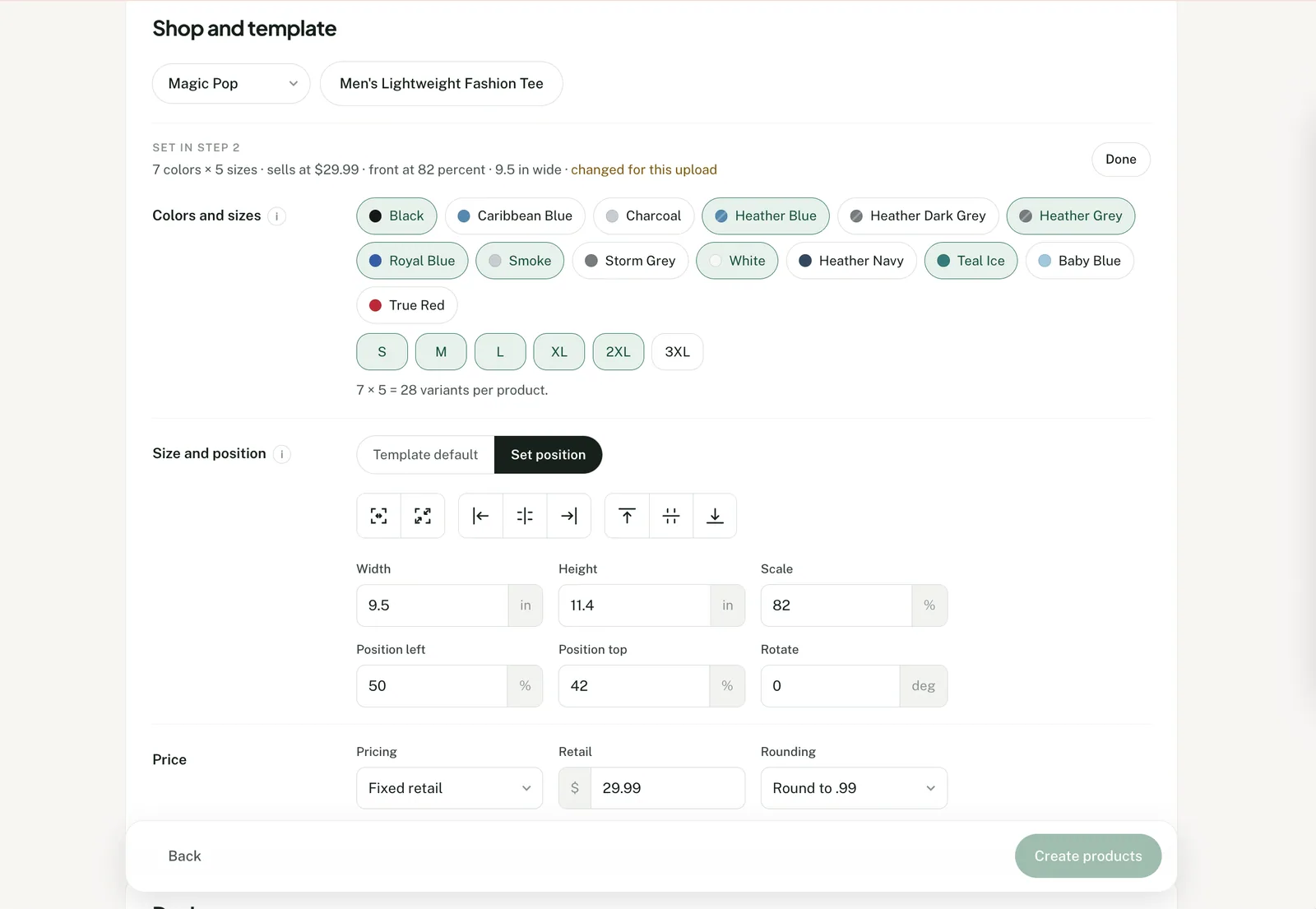
Set the colors, sizes, price and placement
Choose the colors and sizes for every proposed product, set retail pricing and position the artwork on the selected print area. These choices apply across your designs.
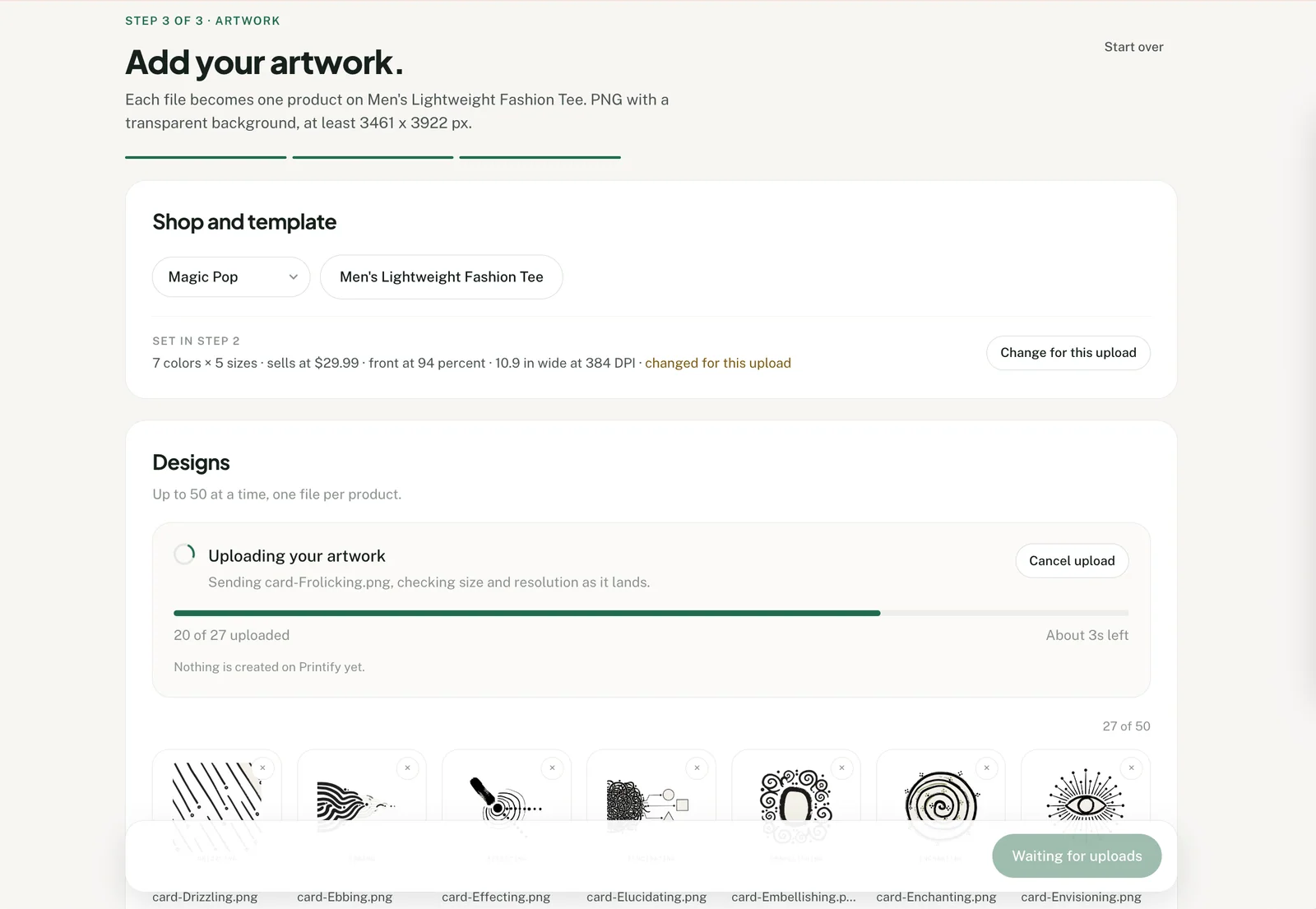
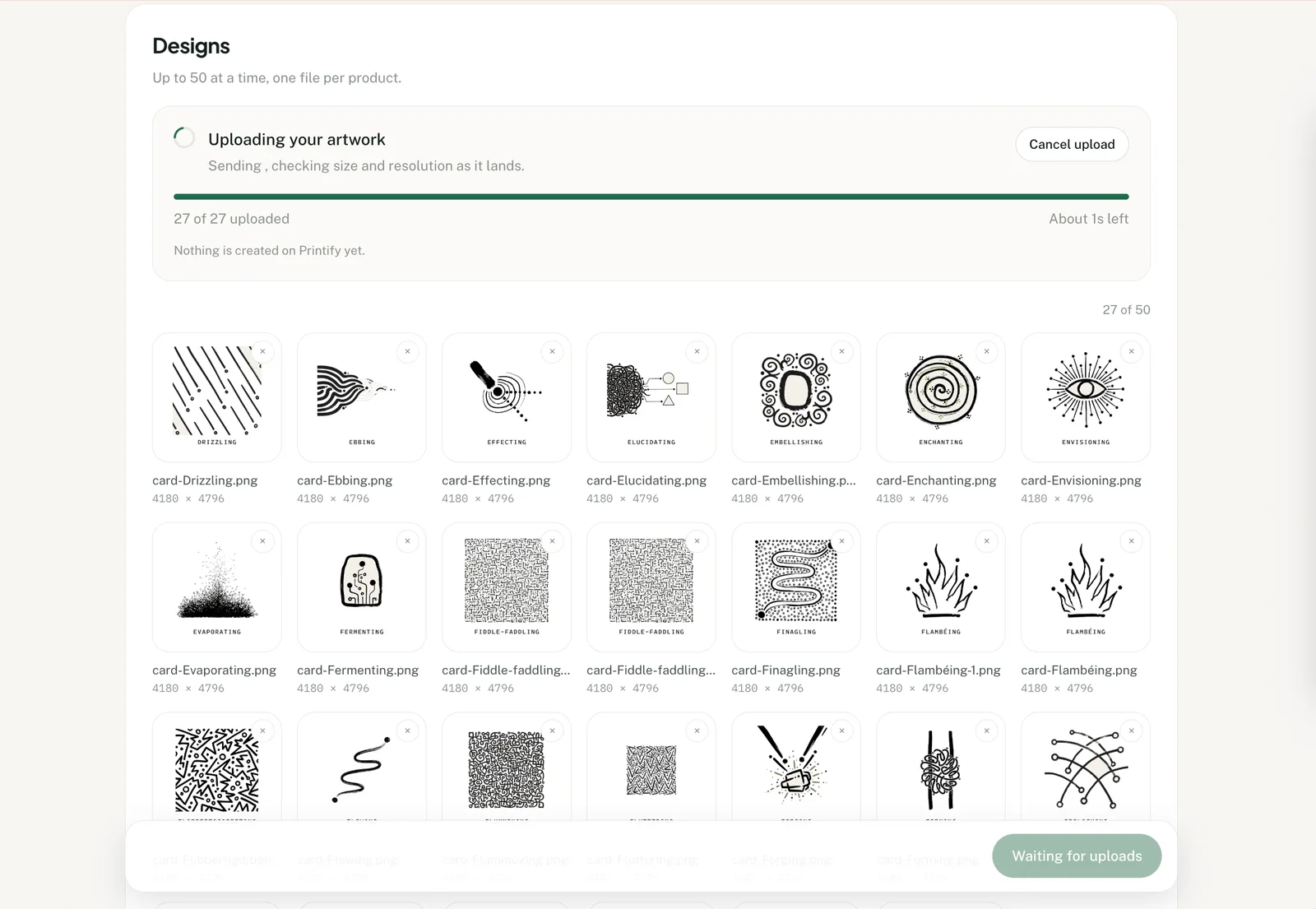
Add the artwork files
Select or drag up to 50 PNG or JPEG files. Each artwork becomes one proposed product using the new setup.
Prepare and review the listings
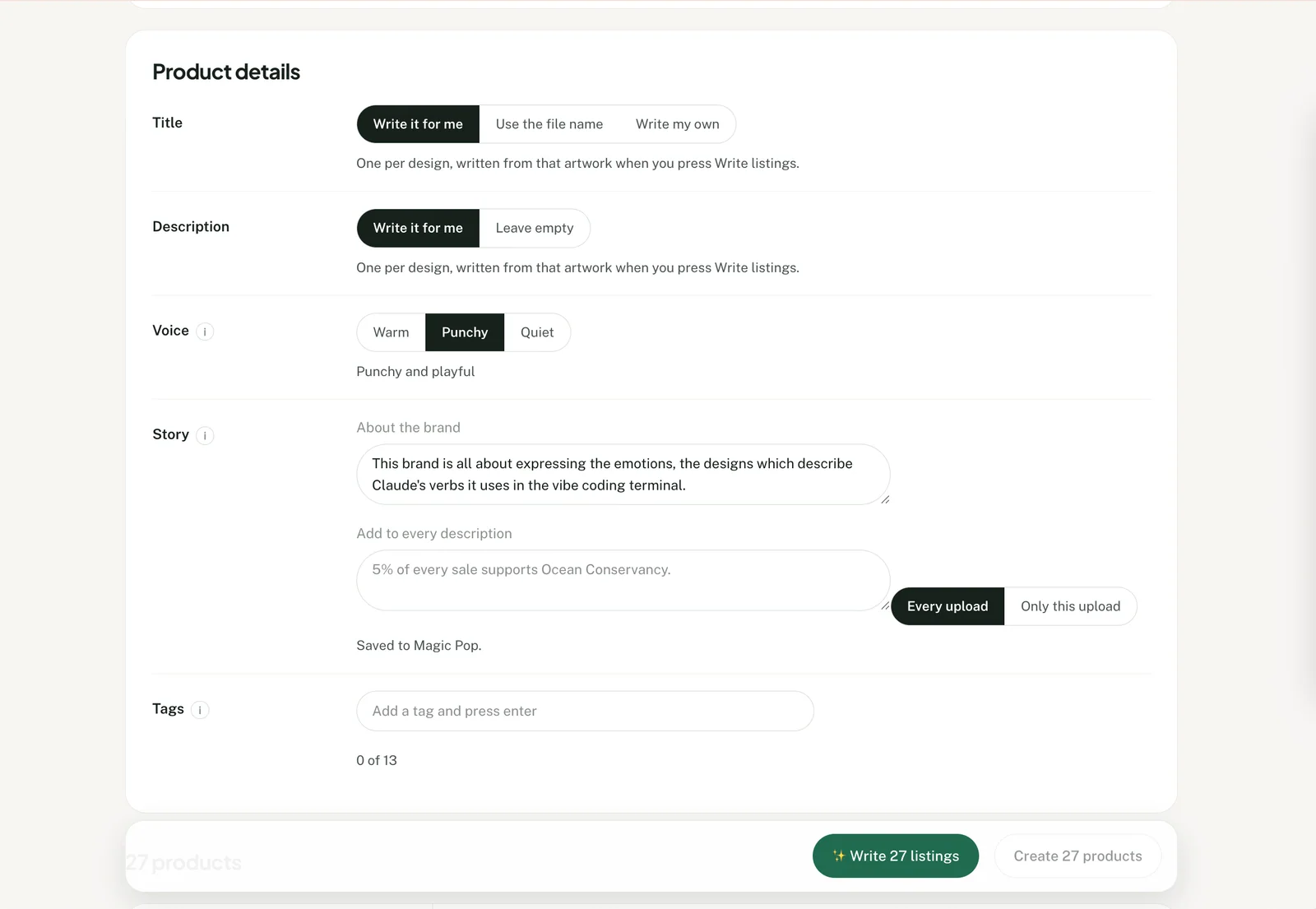
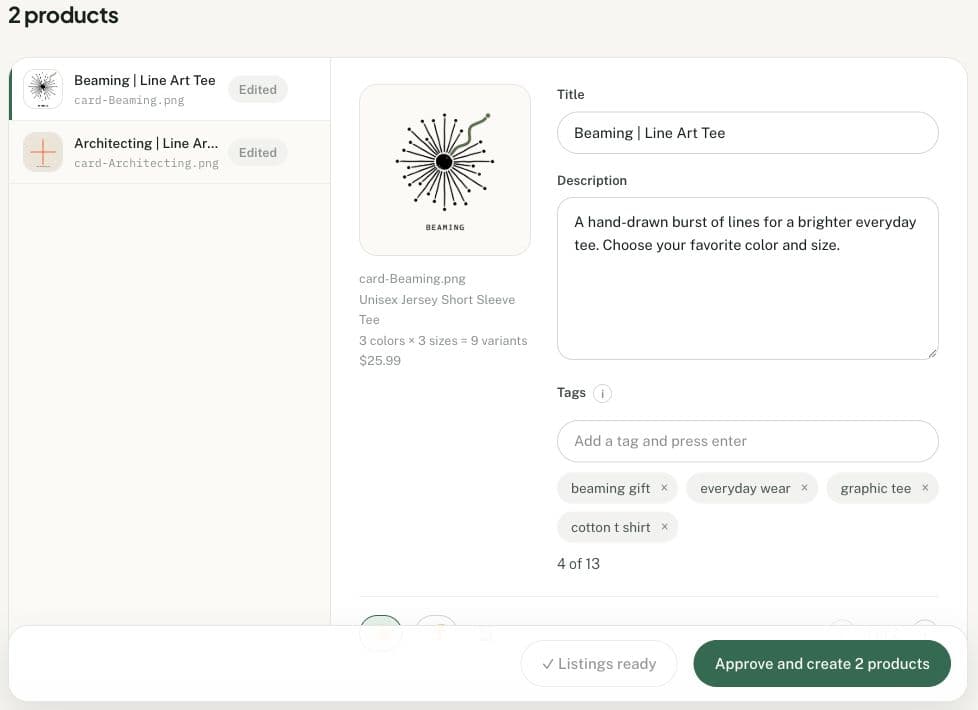
Write the title, description and tags yourself, or ask Productify to draft separate copy for each artwork. Review the listing text, colors, sizes, prices and placement before creation.
Create the products in Printify
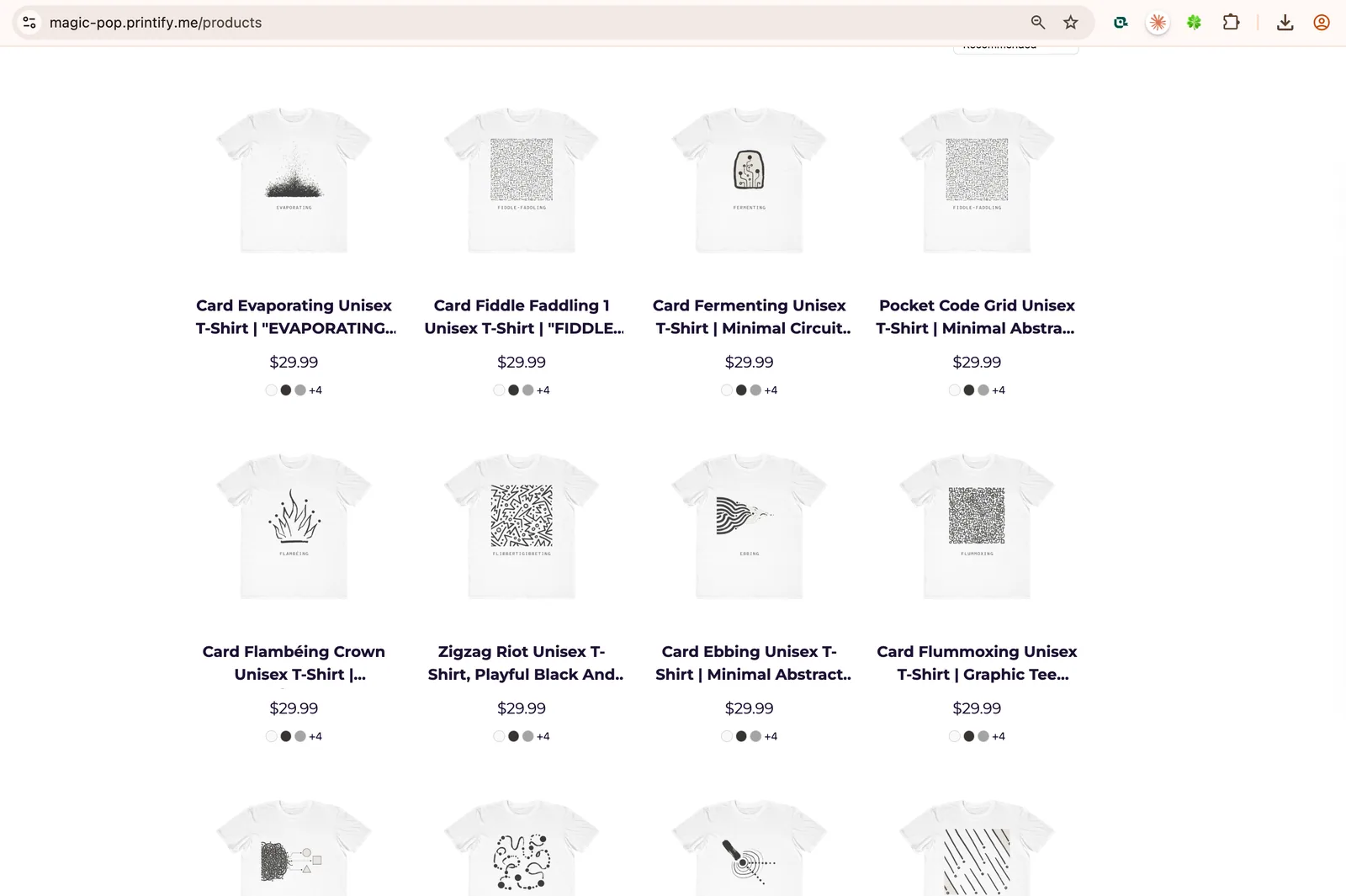
Create the reviewed products in the selected Printify shop, where the products wait as unpublished drafts. Save the setup as a template when you expect to use it again, and publish the products through the connected sales channel when ready.
New setup questions
Questions about creating your first products
Do I need an existing Printify product or template?
No. Choose Set up a new product, search Printify's current catalog, then select the product, print provider, colors, sizes, price and artwork placement for your designs.
Where do the products and providers come from?
Productify reads Printify's current catalog. The available providers, variants and print areas depend on the product you select.
Do the same colors and sizes apply to every design?
Yes. The selected product setup applies to every proposed product in your collection. Review the variants and prices for each product before creation.
Can I change the artwork placement?
Yes. Set the position, scale and angle for the selected print area before adding the designs. Productify applies that placement across your designs.
Can I save the setup for more designs?
Yes. Save a completed Productify product as a template, then choose that template for the next upload.
How many designs can I add at once?
The guided Create flow accepts up to 50 PNG or JPEG files per upload. Each file becomes one proposed product.