
Before you upload
In Create products, select your connected Printify shop and a saved product setup. Or start a new product setup to choose a product and print provider from Printify’s catalog.
Need a connection first? Connect your Printify shop. For a new product setup, follow the instructions for creating your first products.
- PNG or JPEG files, one design per file.
- Up to 50 designs per upload.
- Up to 50 MB per file.
1. Add files
Add your artwork files
Find Designs on the Create products screen. Select Drop your artwork here to browse for files, or drag the files from your folder into that area.
Select the image files themselves, rather than a ZIP file or the folder. You can add more designs after the upload finishes.
2. Check your designs
Check the uploaded designs
Wait for the uploads to finish. If the designs are collapsed, select Show artwork. Check the thumbnails, filenames and any warnings. Use Add more for additional files or the remove control on a design you do not want to use.
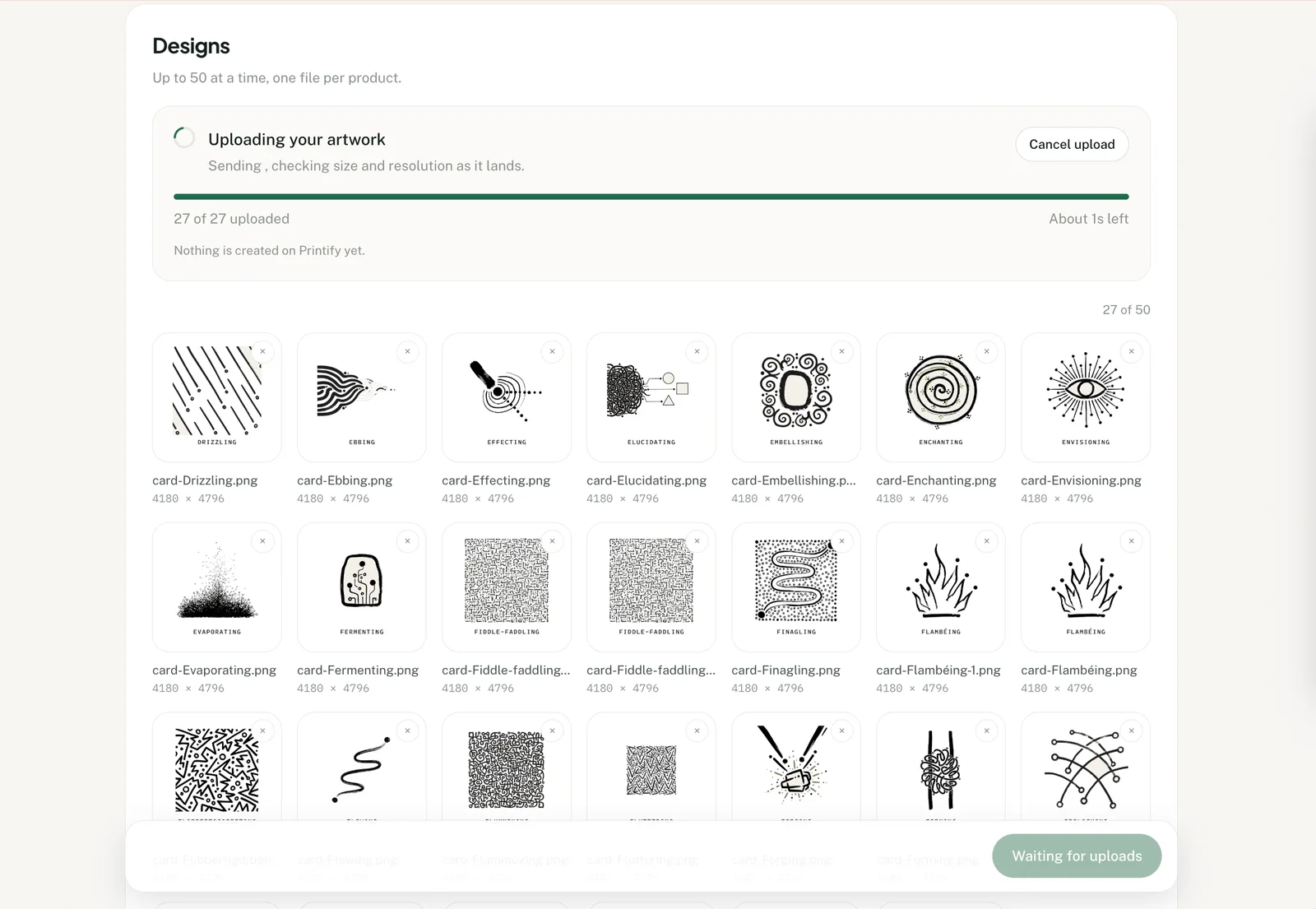
A Low resolution, will print soft warning means the artwork may lose detail at the selected print size. Use a larger original image or reduce the print size before creating the product.
3. Review the products
Review each product before creating it
Each design becomes its own proposed product. Check the artwork placement, colors, sizes and price. Write the title, description and tags yourself, or use AI drafts and edit them.
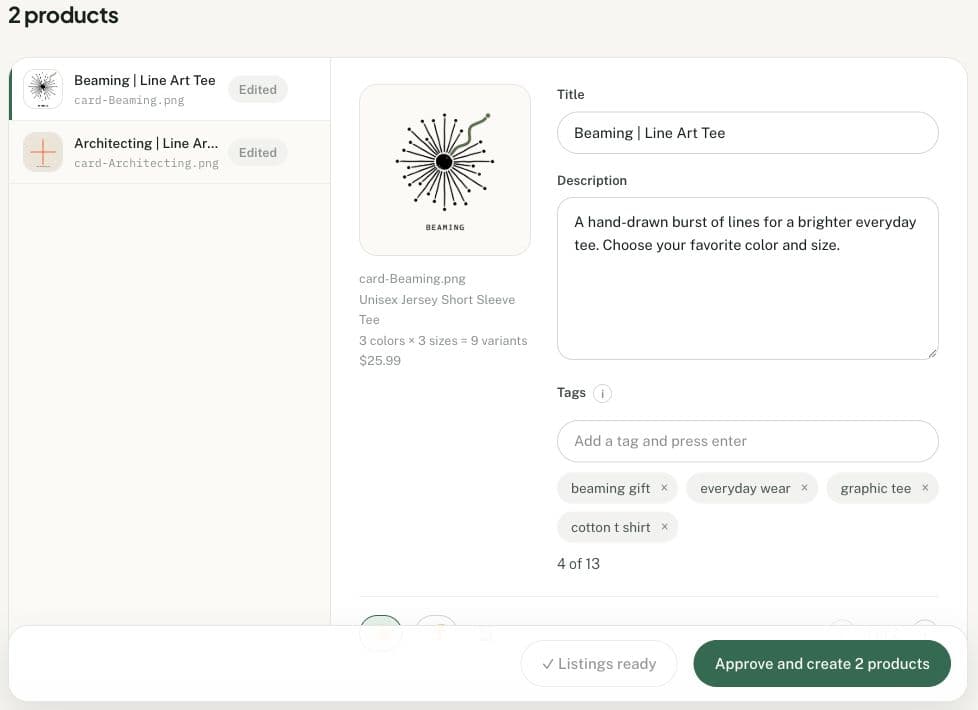
Approve and create creates the reviewed products as drafts in Printify. Publishing to your connected Etsy or Shopify shop is a separate choice.
If a file will not upload
- SVG, PDF or a ZIP folder: export each design as a PNG or JPEG.
- Over 50 MB: export a smaller file while keeping enough detail for your print size.
- More than 50 designs: choose fewer files. An upload that exceeds the limit is refused, so no files from that selection are added.
- A failed file: read its error, remove the failed file, then correct it and use Add more to upload it again. Failed files count toward the 50-file limit until removed.