Turn multiple designs into products, review them before creation, then manage and publish them from Productify. Reuse a Printify product that already works or build a new setup.
After creationedit, sync and publish managed products
The complete Productify flow, from choosing a starting point through catalog setup, review, Printify creation, publishing and post-creation edits.
Choose the starting point
Reuse a setup you trust, or build the product you need.
Use an existing Printify product when its product type, provider, variants, prices and placement are already right. Start from Printify's live catalog when the next batch needs a different setup.
Clone or template
Apply a proven setup to new artwork.
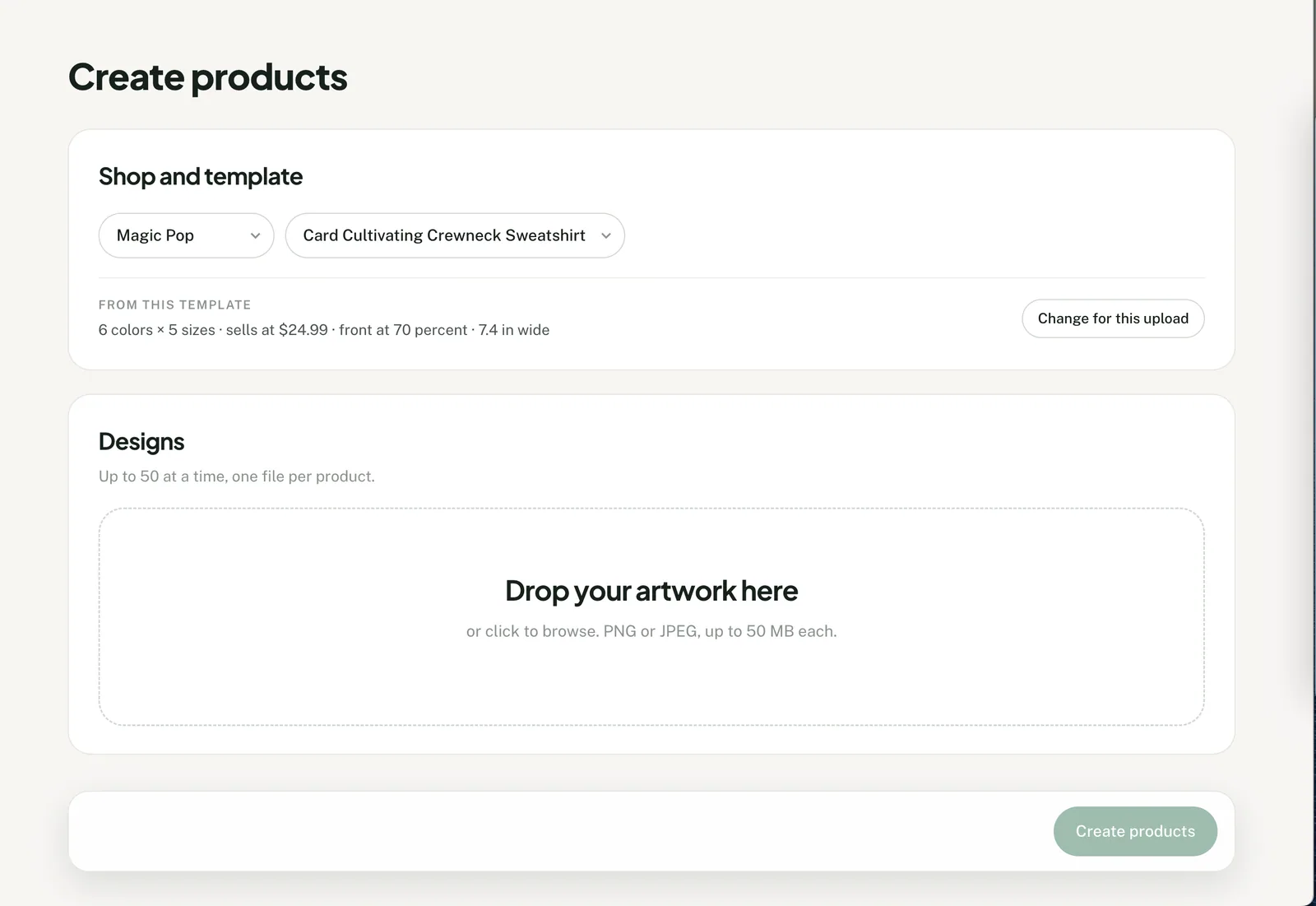
Clone a golden product from the connected Printify shop, or choose a saved Productify template. The source product is never changed.
This saved template brings six colors, five sizes, a $24.99 retail price and the saved front placement into the next upload.
Build from scratch
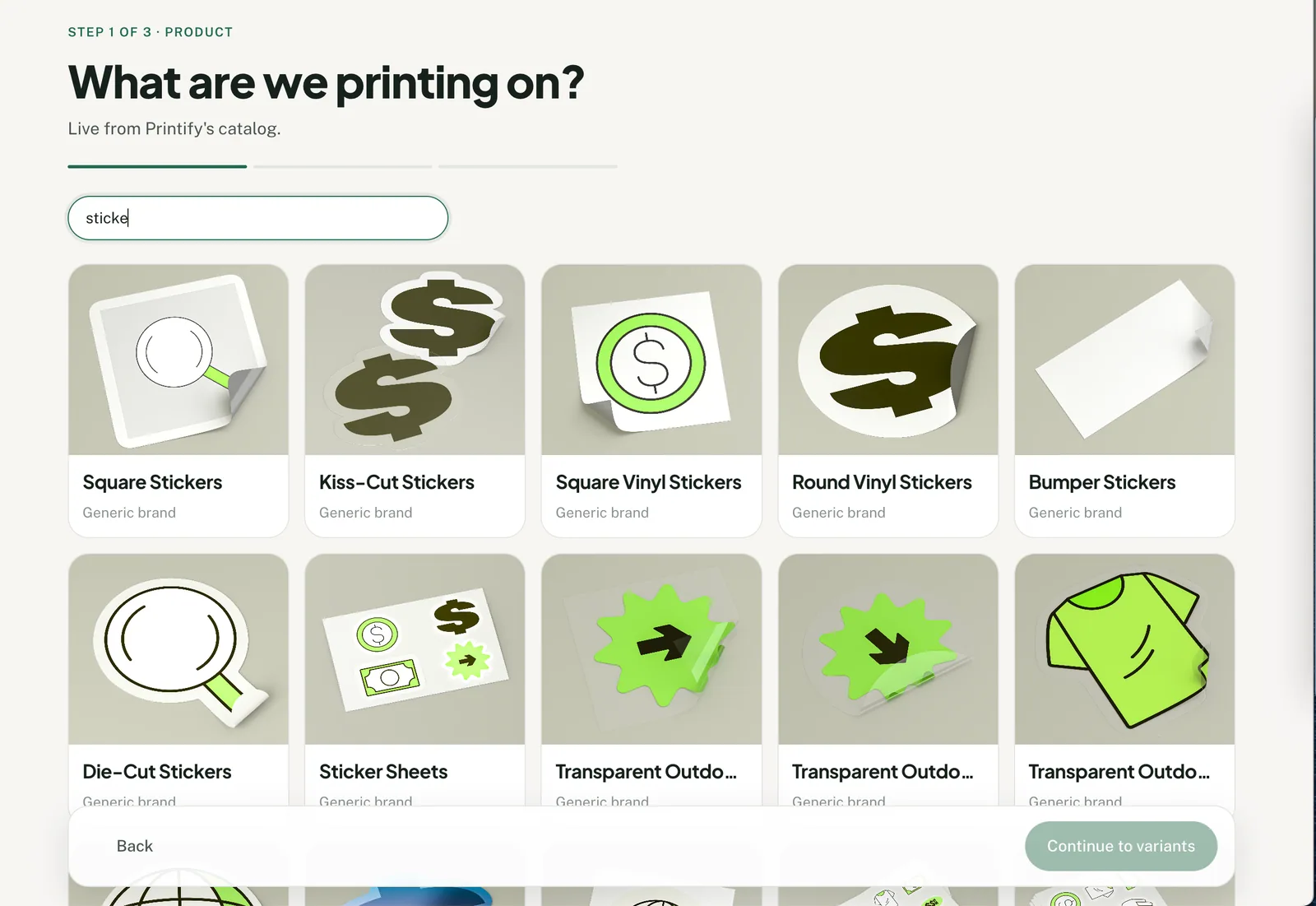
Find the right blank in Printify's current catalog.
Search by product type, then choose from the print providers Printify currently offers for that blank. Productify reads available colors, sizes and print areas from Printify instead of relying on a stored product list.
Set the batch rules
Set colors, sizes, price and placement once.
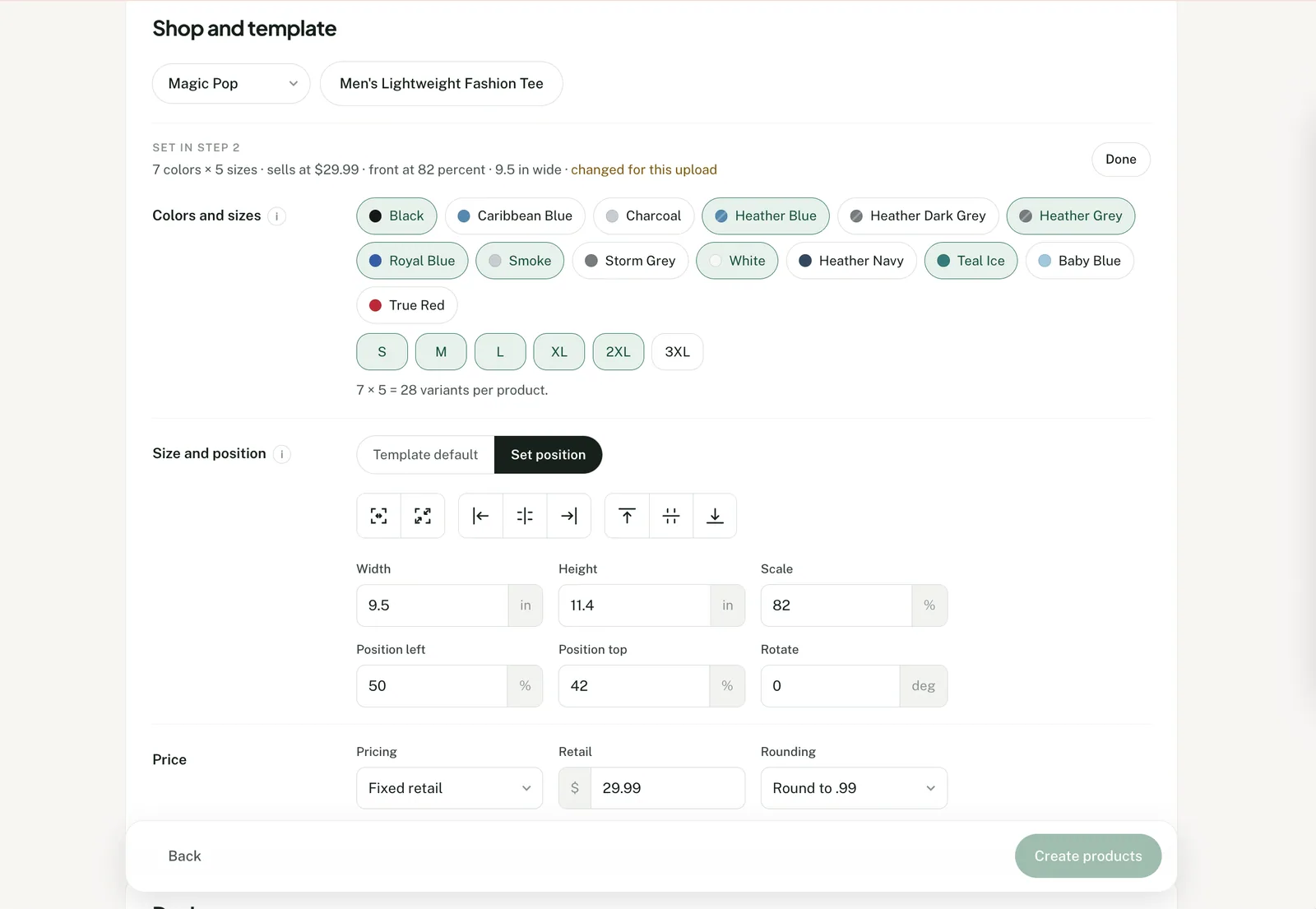
Choose the colors and sizes that should appear in every proposed product. Set a fixed retail price or a cost-based rule when trustworthy cost data is available, then position the artwork on the selected print area.
Search the live catalog when a saved setup does not fit the next batch.
Choose colors and sizes, then set width, position, scale, rotation and retail pricing.
Add the designs
Review every design in a 50-file batch before creation.
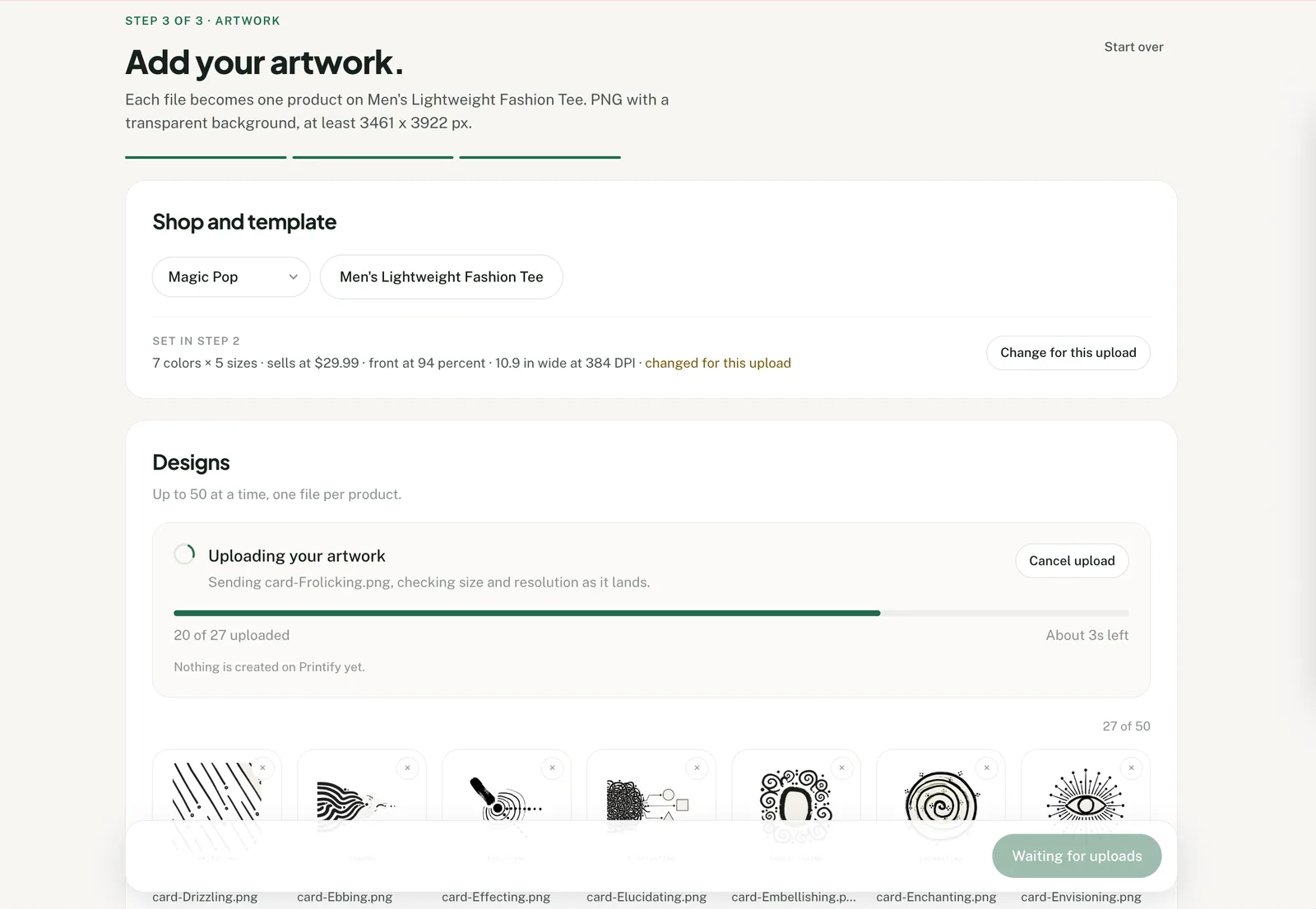
Select or drag up to 50 PNG or JPEG files, up to 50 MB each. One file becomes one proposed product, so you can check every design before the products are created.
Artwork reaches Printify's media library during setup. The Printify products do not exist until you confirm the reviewed batch.
Prepare the listings
Give every design its own listing copy.
Use the filename, write the copy yourself, or ask Productify to draft a title, description and tags from the artwork and verified details for the selected blank.
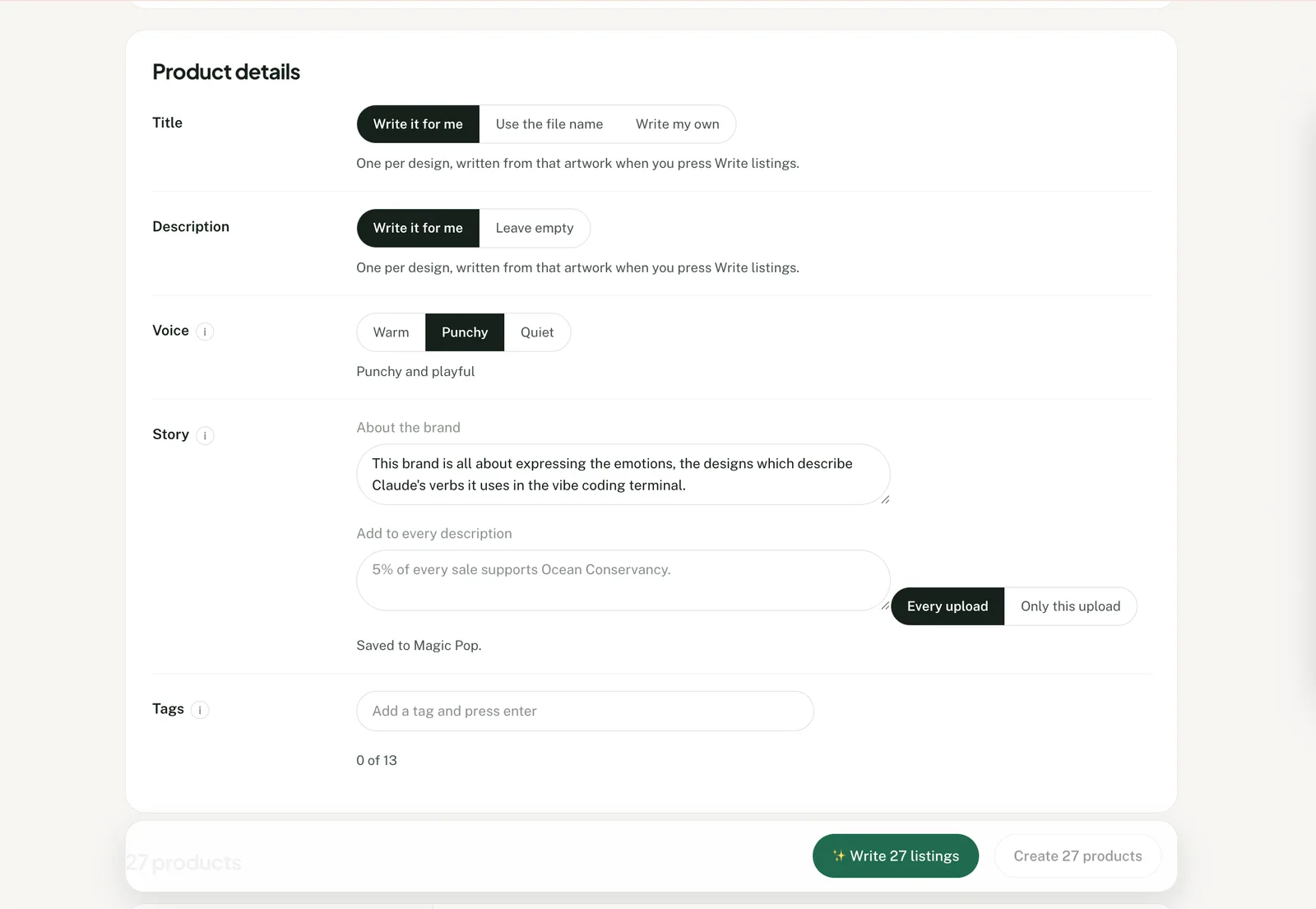
Save a voice and brand story for each shop. Add a seller-written voice note or a batch-specific story when the next collection needs different context.
Choose how copy is written, set the shop voice and story, and add text or tags that should appear across the batch.
Review the batch
Review every product before it is created.
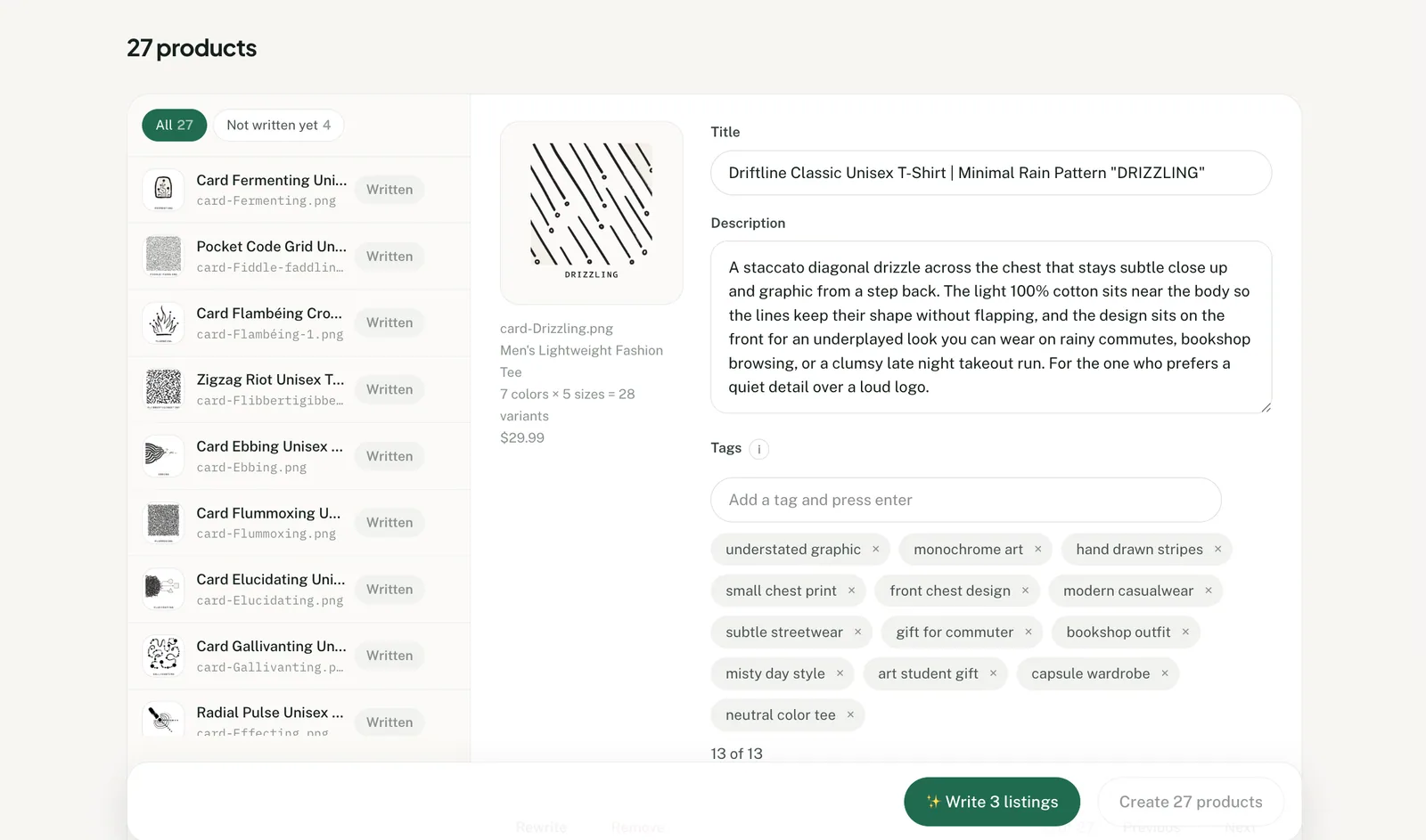
Open every proposed product and check its artwork, listing copy, SKU, enabled variants, prices and placement. Edit a field directly or request up to five copy rewrites with specific feedback.
The final action names the exact number of products that will be created. One successful product uses one credit. Its variants do not use extra credits, and a failed creation does not use a credit.
Review every proposed product before Productify starts the Printify creation job.
After creation
Update products without opening them one by one.
Products created by Productify remain available for bulk price, description, tag, artwork, placement, sync, publish and delete operations. Title changes support a prefix or suffix across a selection.
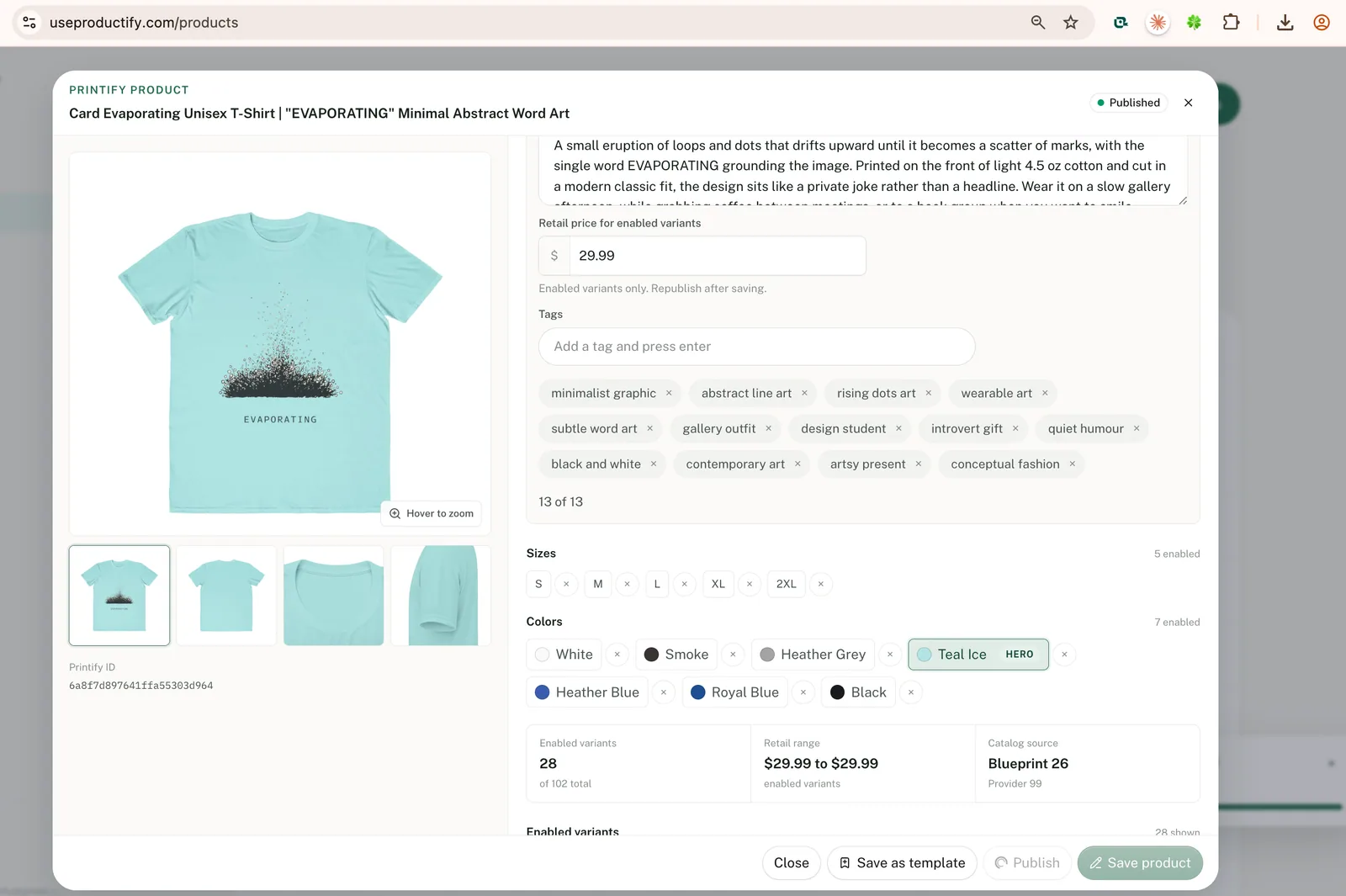
Open one product to edit its listing and retail price, choose the color that should supply its leading mockups, or turn existing colors and sizes on or off. Productify cannot add a variant the product never carried.
Set the hero color, edit the listing and remove existing colors or sizes, then republish when the storefront should reflect the change.
Accounts and shops
Publish each batch through the right Printify shop.
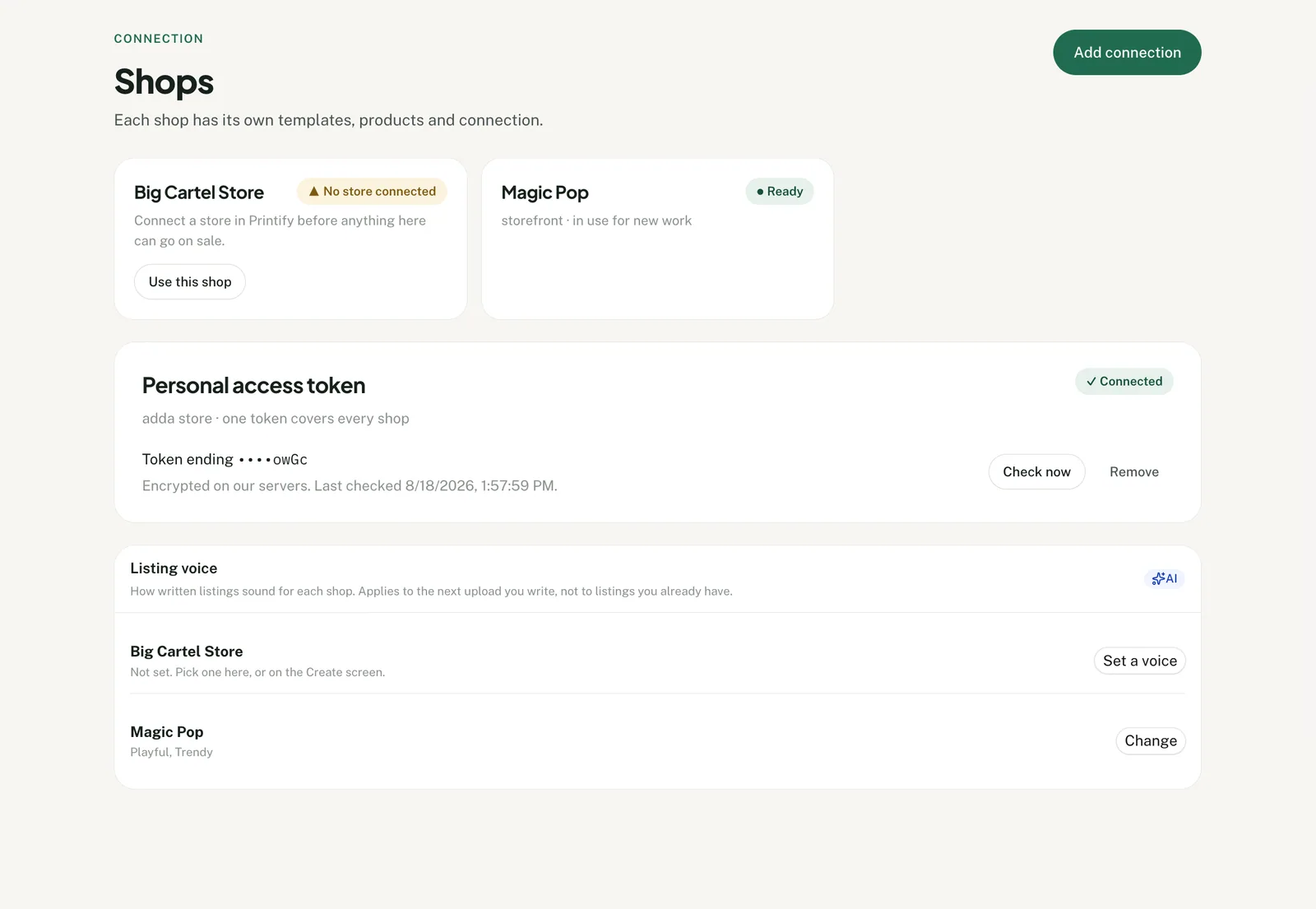
Connect a Printify account with a personal access token, then choose the shop that owns the next batch. One account can contain several shops. The Scale pack allows more than one saved Printify account.
Each batch publishes through the sales channel connected to its selected Printify shop. Productify does not ask for a separate Etsy, Shopify, Big Cartel or Printify Pop-Up Store connection.
Name the Printify connection, save its token securely, and choose from the shops that token can reach.
Questions
Productify feature FAQ
What does a saved template carry into the next batch?
A saved template carries the blank, print provider, colors, sizes, price and artwork placement. A template captured from an existing product can also offer its description for reuse. New titles still start from the new artwork.
Can one batch publish the same products to several stores?
No. Each batch belongs to one selected Printify shop. Publish through that shop's connected sales channel, then switch shops for work owned by another store.
Can I add a new color after product creation?
You can turn existing colors and sizes on or off. Productify cannot add a variant the product never carried, so include every needed option during the original setup.
Does Productify create products or only upload images?
It creates configured products in the selected Printify shop. Artwork reaches the media library during setup, then the reviewed creation job builds the products with variants, prices, copy and placement.
Create one Printify product per design.
Choose the shop and product setup, add the designs, then review the proposed products before creation.